Showing posts with label WebSphere. Show all posts

Thursday, October 28, 2010

Setting WebSphere JVM Heap size without the web console

It seems that when you update the JVM Heap size settings for WebSphere through the web console via:

Servers > Application Servers > WebSphere_Portal > Server Infrastructure > Java and Process Management > Process Definition > Java Virtual Machine > Maximum/Minimum Heap Size

There is no warning at all about setting the minimum value and NOT setting the maximum value.  The maximum value by default is 256mb, so if by any chance you set the minimum to 512mb and you go get  a coffee while restarting the server, you will get the following error message in the native_stderr.log file:


“Could not create the Java virtual machine.
JVMJ9GC019E -Xms too large for -xmx “

The message is quite clear, but it doesn’t say where to change this setting and by now you will notice that your server won’t start and you have no access to the web console in order to change the settings.

So how to solve this? find the server.xml config file, that could be located in path similar to this one:

“C:\Program Files\IBM\WebSphere\AppServer\profiles\AppSrv01\config\cells\mycomputernameNode01Cell\nodes\mycomputernameNode01\servers\server1″

Please make a BACKUP before proceeding.

Then look for the “jvmEntries” xml element that could look like this:

initialHeapSize=”512″ runHProf=”false” debugMode=”false” debugArgs=”-agentlib:jdwp=transport=dt_socket,server=y,suspend=n,address=7777″ disableJIT=”false”>


Now you can either:
  • Remove the “initialHeapSize” attribute
  • Modify the value to something equal or below 256mb (the default)
  • Add the “maximumHeapSize” and set it to equal or more than the initial, in this case 512mb
Save the file and your server should be ready to go.

Thursday, July 29, 2010

JVM Heap Size Tuning

Earlier this week I had to solve a major performance issue affecting our application, in the end it turned out to be a database (missing statistics) problem that lead to a slow response from a query, but in the mean time I had the opportunity to play a little bit more with Websphere’s JVM Heap size settings.

First of all, what is the JVM Heap size? The simple answer is: The amount of memory used by the virtual machine to allocate new objects created by your Java applications.

You can find tons of details about it online, but here I’ll post the main ones:

·It directly affects performance, so it’s one of the most important JVM tuning parameters

·If you set the max heap size too low, your apps will reach the max level soon and you’ll get the following error:

Exception in thread "main" java.lang.OutOfMemoryError: Java heap space

·In case you choose big amount for the max heap size setting, then your applications will have all the room needed to create objects, but then the Garbage Collection (GC) process will take longer. The effect of this setting will depend on the GC policy you choose.

By default the GC policy is set to “Optthruput” which means your app will not respond during GC. The second option is “Optavgpause”, that runs the GC concurrently with the app and gives a better response time. Finally “Gencon”, that treats long-lived and short-lived objects in a different way by allocating the latter ones in a special area (Nursery space) that can be disposed more often, hence reducing the time spent during GC.

In the end the value of the heap size will depend on the needs and resources available in each case, so now it’s time for you to go and give it a try ;)

Friday, November 20, 2009

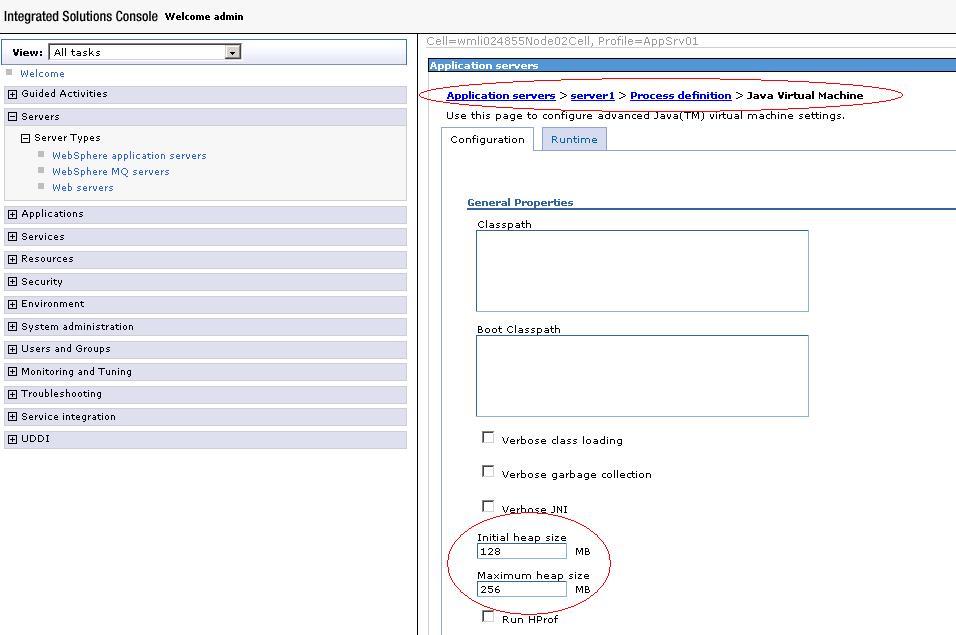
Setting Java Virtual Machine memory heap size for your server

Do you need to set the heap size (min and max) available for the java virtual machine being used by your server? well I ran into that annoying OutOfMemoryError message today and I took a couple of screenshots describing how to do it, check it out.

Here you can see WebSphere's console:


In this other case I used Eclipse, you can check how to set the values in the virtual machine parameters at the server connector tab for Geronimo:


Thursday, November 19, 2009

Java version being used by your server

Today I was solving an issue on different environments and I had to check the Java version being used in BEA Weblogic, IBM WebSphere and Apache Geronimo, it is not difficult but again I thought it would be useful to share it with everyone.

Here you can see how to check the Java version through the log in the Weblogic console:


In this case for WebSphere, you can see where to find the version by directly checking the log file:

The final screenshot is from Geronimo, with a lot of information about Java: