Showing posts with label Java. Show all posts

Thursday, October 28, 2010

Setting WebSphere JVM Heap size without the web console

It seems that when you update the JVM Heap size settings for WebSphere through the web console via:

Servers > Application Servers > WebSphere_Portal > Server Infrastructure > Java and Process Management > Process Definition > Java Virtual Machine > Maximum/Minimum Heap Size

There is no warning at all about setting the minimum value and NOT setting the maximum value.  The maximum value by default is 256mb, so if by any chance you set the minimum to 512mb and you go get  a coffee while restarting the server, you will get the following error message in the native_stderr.log file:


“Could not create the Java virtual machine.
JVMJ9GC019E -Xms too large for -xmx “

The message is quite clear, but it doesn’t say where to change this setting and by now you will notice that your server won’t start and you have no access to the web console in order to change the settings.

So how to solve this? find the server.xml config file, that could be located in path similar to this one:

“C:\Program Files\IBM\WebSphere\AppServer\profiles\AppSrv01\config\cells\mycomputernameNode01Cell\nodes\mycomputernameNode01\servers\server1″

Please make a BACKUP before proceeding.

Then look for the “jvmEntries” xml element that could look like this:

initialHeapSize=”512″ runHProf=”false” debugMode=”false” debugArgs=”-agentlib:jdwp=transport=dt_socket,server=y,suspend=n,address=7777″ disableJIT=”false”>


Now you can either:
  • Remove the “initialHeapSize” attribute
  • Modify the value to something equal or below 256mb (the default)
  • Add the “maximumHeapSize” and set it to equal or more than the initial, in this case 512mb
Save the file and your server should be ready to go.

Thursday, July 29, 2010

JVM Heap Size Tuning

Earlier this week I had to solve a major performance issue affecting our application, in the end it turned out to be a database (missing statistics) problem that lead to a slow response from a query, but in the mean time I had the opportunity to play a little bit more with Websphere’s JVM Heap size settings.

First of all, what is the JVM Heap size? The simple answer is: The amount of memory used by the virtual machine to allocate new objects created by your Java applications.

You can find tons of details about it online, but here I’ll post the main ones:

·It directly affects performance, so it’s one of the most important JVM tuning parameters

·If you set the max heap size too low, your apps will reach the max level soon and you’ll get the following error:

Exception in thread "main" java.lang.OutOfMemoryError: Java heap space

·In case you choose big amount for the max heap size setting, then your applications will have all the room needed to create objects, but then the Garbage Collection (GC) process will take longer. The effect of this setting will depend on the GC policy you choose.

By default the GC policy is set to “Optthruput” which means your app will not respond during GC. The second option is “Optavgpause”, that runs the GC concurrently with the app and gives a better response time. Finally “Gencon”, that treats long-lived and short-lived objects in a different way by allocating the latter ones in a special area (Nursery space) that can be disposed more often, hence reducing the time spent during GC.

In the end the value of the heap size will depend on the needs and resources available in each case, so now it’s time for you to go and give it a try ;)

Sunday, May 16, 2010

OpenJDK or Sun's JDK?

Did you just install Ubuntu and noticed that OpenJDK is the default Java Virtual Machine? I have nothing against OpenJDK but some programs require the Sun version.

The good news is that you don't have remove neither of them cause both can live happily next to each other and all it takes to switch from one version to another is the following command:

sudo update-alternatives --config java 

Tuesday, January 12, 2010

Simple Spring 3 tutorial

Here goes a tutorial to get your feet wet with a (really) simple Java Application using the latest version of Spring.

1- Create a simple Java project named "SimpleSpring3"


 2- Create a "lib" in your project right under your "src" folder, then download the latest Spring version and copy the jars to "lib". Also copy "commons-logging.jar" located in the following location "projects/spring-build/lib/ivy" in the unzipped Spring file. Your library should look like this


3- Create a "SimpleSpring3" java class in the "com.greensoft" package, this class will contain one simple "sayHola" method that prints "Hola Spring 3.0!!" in the console


4- Create the Spring config "SimpleSpring3.xml" file located in the "src" folder


5- Add the following code to the Spring config file

 <beans xmlns="http://www.springframework.org/schema/beans"  
      xmlns:xsi="http://www.w3.org/2001/XMLSchema-instance" xmlns:aop="http://www.springframework.org/schema/aop"  
      xsi:schemaLocation="http://www.springframework.org/schema/beans http://www.springframework.org/schema/beans/spring-beans-3.0.xsd">  
      <bean id="SimpleSpring3Bean" class="com.greensoft.SimpleSpring3" />  
 </beans>  

The code in the config file defines a bean that can be accessed later on from our test file using the bean factory

6- Create the test file "SimpleSpring3Test" and the following code

 package com.greensoft;  
 import org.springframework.beans.factory.xml.XmlBeanFactory;  
 import org.springframework.core.io.ClassPathResource;  
 public class SimpleSpring3Test {  
      public static void main(String[] args) {  
           XmlBeanFactory beanFactory = new XmlBeanFactory(new ClassPathResource(  
           "SimpleSpring3.xml"));  
           SimpleSpring3 simpleSpringBean = (SimpleSpring3) beanFactory  
           .getBean("SimpleSpring3Bean");  
           simpleSpringBean.sayHola();  
      }  
 }  

In the above code we use XmlBeanFactory to get access to our config file "SimpleSpring3.xml" in order to get our "SimpleSpring3Bean" object.

7- The final project structure should look like this


8- Execute the code by right clicking on the test file "SimpleSpring3Test" then --> Run As --> Java Application" and you should get the following output in the console


simple, right? I hope it was useful for someone out there, that's it for now ;)

Friday, November 20, 2009

Setting Java Virtual Machine memory heap size for your server

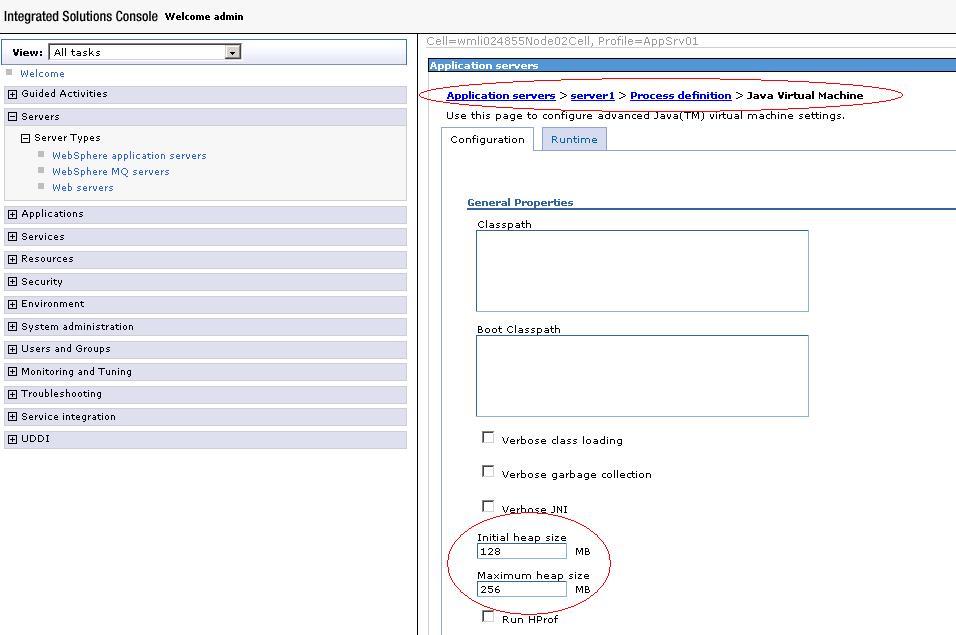
Do you need to set the heap size (min and max) available for the java virtual machine being used by your server? well I ran into that annoying OutOfMemoryError message today and I took a couple of screenshots describing how to do it, check it out.

Here you can see WebSphere's console:


In this other case I used Eclipse, you can check how to set the values in the virtual machine parameters at the server connector tab for Geronimo:


Thursday, November 19, 2009

Java version being used by your server

Today I was solving an issue on different environments and I had to check the Java version being used in BEA Weblogic, IBM WebSphere and Apache Geronimo, it is not difficult but again I thought it would be useful to share it with everyone.

Here you can see how to check the Java version through the log in the Weblogic console:


In this case for WebSphere, you can see where to find the version by directly checking the log file:

The final screenshot is from Geronimo, with a lot of information about Java:


Tuesday, November 17, 2009

Javac OutOfMemory error while compiling with Ant

Did you get this OutOfMemory error message from javac  while compiling with ant:

“The system is out of resources.
Consult the following stack trace for details.
java.lang.OutOfMemoryError: Java heap space”

Well there is an easy way to fix it! first set property “fork” to true, this will allow javac to execute in a separate thread with its own resources, then you can set the values for “memoryinitialsize” and “memorymaximumsize” according to your needs. Here is a sample of how the javac task would look.

 <javac  
     fork="true"
     srcdir="${basedir}/src"  
     destdir="${basedir}/build/classes"  
     classpath="${project.classpath}"  
     memoryinitialsize="256m"  
     memorymaximumsize="256m"
 />  

That’s it! I hope it helps ;)

Sunday, August 9, 2009

Kohonen Neural Networks and JAVA

Well as you can see on the title of the post, I decided to talk a bit more about what I do 3/4 of my day: JAVA, hopefully to share the problems I have everyday will help somebody else and also I'm pretty sure they will also help me.

My whole Java career started 3 years ago just by coincidence, I was in charge of the development of the "brain" of a mobile robot and the best way to have an OS independent software is using Java, so I ended up buying a Java book and started messing around with my computer and Netbeans.

Anyway, to make a long story short I developed two softwares to create the robot's brain, the requirement was that the robot could be able to move from position A to position B making all the decisions by himself in order to avoid obstacles and reach its destination.

To accomplish this goal I decided to use Self Organizing Maps also called Kohonen Networks, a self-organizing artificial neural network that selects the winner neuron by using the euclidean distance.

The learning process for the SOM is to make that different areas of the network can be activated by similar input patterns, and this resembles a lot to the way our brains work when we receive auditory or visual information and different areas of our brain generate the response.

JKam is the name of the software I developed for this task, its goal is to make easier the training process for Kohonen Networks and it has the following features:
  • It allows you to define the structure of the map (Input Neurons, X Neurons and Y Neurons)
  • Bubble and Gaussian neighborhood functions
  • Exponential, Linear or Inverse Time learning factor functions
  • Training variables such as amount of steps, radius, training sets and initial learning factor rate.
  • It also allows you to save and re-use training sets and neural networks on an XML format.


I stopped working with this software a couple of years ago but I think it can be pretty useful on different fields so if anyone is interested on using it, just send me an email and I will gladly send you the files.

Well that's it, on the next post I'll talk about the software using a SOM trained with JKam, the brain of the robot: Ferbar.

Wednesday, November 19, 2008

Maven and the Java Heap size...

Have you ever ran into this error while compiling a project using Maven in Eclipse:

"Java heap space error"

Well this can be easily solved by adding a couple of parameters to the JRE being used in Eclipse. Go to the following location:

Window/Preferences/Java/Installed JREs

Edit the JRE that is ticked and in the Default VM arguments add this:

-Xms128M -Xmx256M

You can modify these values according to your needs, and in case you had this problem while compiling through the console try setting this variable:

export MAVEN_OPTS="-xMS128m -xMX256m"